Installation
Step 1: Download UE4SS
Download the file UE4SS-Palworld.zip from the custom fork releases page.
Why use this custom fork?
- We use this specific fork because it is tailored for Palworld modding and comes bundled with the necessary configuration files, so you don't have to download them separately.
- If you already have UE4SS installed for the PalSchema mod, you can skip this step, since it was already set up when you installed PalSchema.
Scroll down to the Assets section to find the download link.
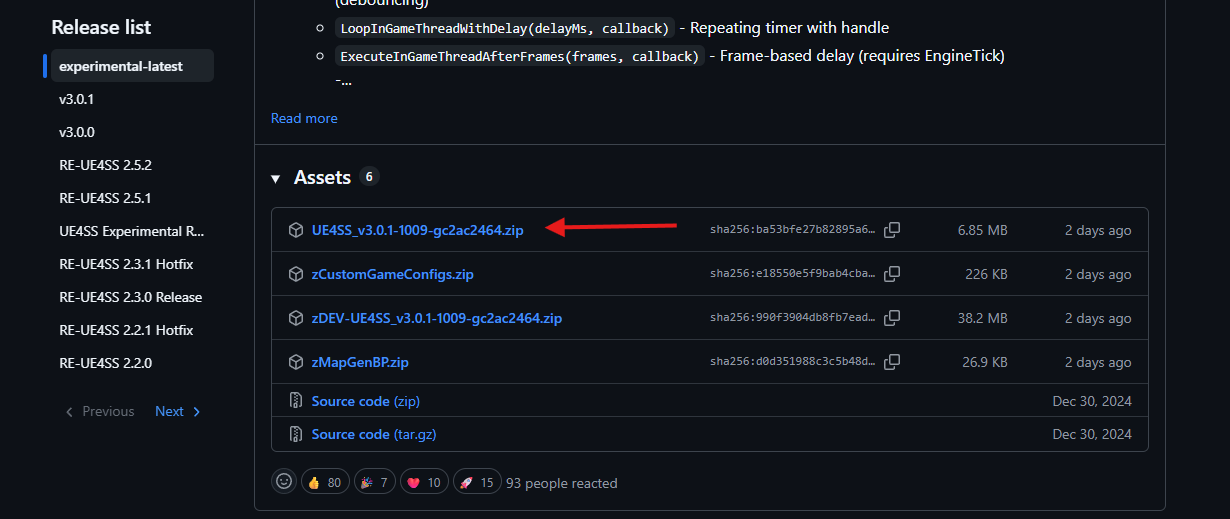
Step 2: Verify the Download
Open the .zip file you downloaded. It should contain:
- A folder named
ue4ss(which already includesMemberVariableLayout.ini) - A file named
dwmapi.dll
If you see both, you have the correct version.

Step 3: Install to Your Game Folder
Select your platform below to view the installation steps.
- Open Steam and find Palworld in your Library.
- Right-click it and select Properties.
- Go to Installed Files and click Browse. This opens the root folder of your Palworld installation.
- Navigate to
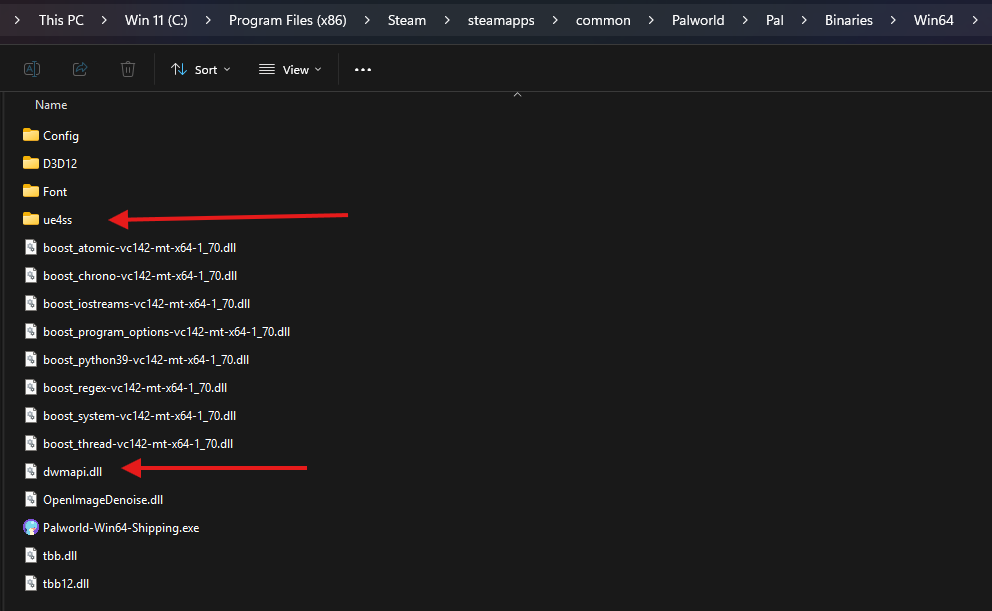
Pal > Binaries > Win64. You should seePalworld-Win64-Shipping.exein this folder. - Open your UE4SS
.zipfile and move theue4ssfolder anddwmapi.dllfile into theWin64folder.
Success
UE4SS is now installed for the Steam version of Palworld. Continue to the Configuration guide below.
PC Version Only
This applies only to the PC version. Modding is not possible on consoles.
- Open the Xbox app and find Palworld in My Library.
- Right-click it and select Manage.
- Go to Files and click Browse. This opens the folder where your Xbox games are installed.
- Navigate to
Palworld > Content. - Navigate to
Pal > Binaries > WinGDK. You should seePalworld-WinGDK-Shipping.exein this folder. - Open your UE4SS
.zipfile and move theue4ssfolder anddwmapi.dllfile into theWinGDKfolder.
Success
UE4SS is now installed for the Game Pass version of Palworld. Continue to the Configuration guide below.
Configuration
You're almost ready to begin installing mods! But before that, you'll want to make sure your UE4SS-settings.ini is set up properly. This ensures smooth gameplay when using UE4SS with Palworld.
UE4SS-Settings
If you remember where you installed UE4SS above, you'll find the UE4SS-Settings.ini file inside the ue4ss folder. Open it in a text editor (like Notepad) and let's get started editing.
-
Fixing Stutters: Set
bUseUObjectArrayCachetofalseif it is currently set totrue.Leaving it set to
truecan cause lag and stutters, so it is not recommended unless you're a developer planning to use the LiveView feature of UE4SS. -
Disabling the Console: Set both
GuiConsoleEnabledandGuiConsoleVisibleto0if you're just planning to play with mods.The GUI Console is only useful for mod developers and will severely impact game performance.
0= disabled1= enabled
All Done!
That's everything. You're now ready to install some mods!
Uninstallation
To completely uninstall UE4SS from your game:
- Navigate to your game's
Binaries > Win64(Steam) orBinaries > WinGDK(Xbox) folder, just as you did during installation. - Delete the
ue4ssfolder. - Delete the
dwmapi.dllfile.
Info
Deleting these files will completely remove UE4SS and disable all UE4SS mods from your game.
QOL Tip: Uninstalling Pak Mods
If you want to uninstall your pak mods as well, you can safely delete these entire folders:
\Pal\Content\Paks\~mods\Pal\Content\Paks\LogicMods